
Automations and Scripting in Airtable
Airtable has gotten the popularity not only with its user-friendliness and pretty UI, but also with robust workflow automation features. Airtable Automations basically allows you to create custom ‘trigger-action’ workflows based on the events in your base. (e.g. When a new record is created, when a record is updated/deleted, etc.)
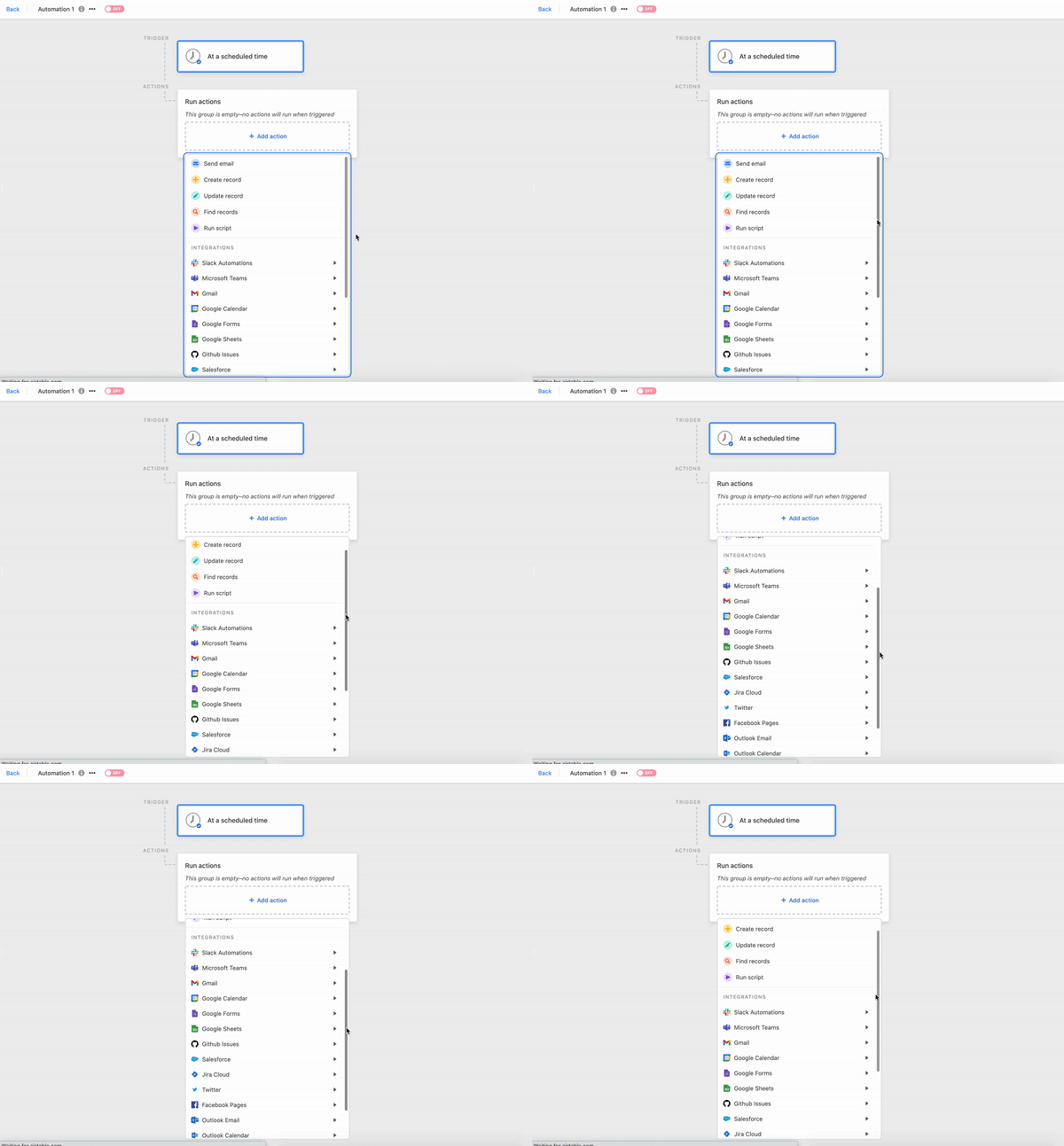
On top of the native integrations supported by Airtable such as ‘sending an email’ or ‘sending a Slack message,’ it also allows you to write and run your custom scripts based on the event triggers. It’s provided by Airtable’s JavaScript-based scripting environment where you can write codes to interact with Airtable data and make simple API calls to external APIs. This means you can automate so many boring things and say goodbye to all those manual works inside and outside of your Airtable!
BUT… if you want to go one step further, this might not be enough.
Problems: Limits of Automation Scripts
Despite all the capabilities above, Airtable’s automation script has two major functional limits:
- Only available in JavaScript
- Unable to import external libraries or modules
If you want to perform automation tasks that require complex interactions with external APIs, you would find it quite challenging in Airtable since there is no easy way to import external libraries or packages in Airtable’s scripting environment. Or you may already have a long Python script that does the job, but you just can’t reuse it because only JavaScript is available in Airtable scripts.
Solution: Using AWS Lambda as a Proxy for Your Automation
A simple solution is to employ an external proxy that gives you more programming capabilities, and let Airtable events trigger the proxy to run your code. This is why we need AWS Lambda and Amazon API Gateway . AWS Lambda provides a complete web-based development environment to write codes in your favorite languages (Node.js, Python, Java, and more), import external libraries as necessary, and run it on the cloud. This seems to be the perfect solution for the problems above. Let’s take a closer look at the process through an example.
Example: Automating Google Drive Folder Sharing using Airtable Updates
In this example, we’re going to make a simple automation that shares my Google Drive folder with other people using the update of Airtable data. As mentioned, it is difficult to do this task in Airtable script since it doesn’t allow us to import necessary JavaScript libraries that are required to access Google Drive API. Therefore, I designed a simple automation architecture that employs AWS Lambda and Amazon API Gateway as proxy to automate a Google Drive task upon Airtable updates. (fig. 2)

1. Set up a database
I prepared a simple table (fig. 3) that includes staff’s emails, staffing status, and the link to my Google Drive folder. When the value of ‘Status’ column changes from ‘1-Ready for Staffing’ to ‘2-Staffed’, it will trigger an Airtable script that triggers an AWS Lambda function, which can perform more complex processes to invite the staffs to a Google Drive folder.

2. Write your AWS Lambda function
First of all, you need to write a code in your favorite programming language that does a task outside of Airtable. (I’m using a python script in this example) AWS Lambda is where you can host your code (we will call it ‘Lambda fucntion’). Following the AWS documentation, prepare your Lambda function on the cloud so that Airtable’s automation script can invoke it.
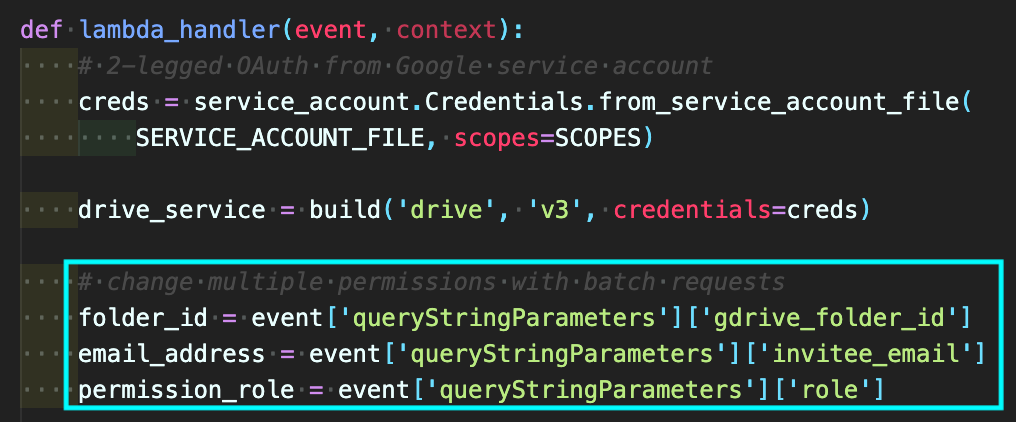
Here’s the most important part in writing the Lambda function. In this example, the function needs three input parameters to send to Google Drive API . Later in the process, we will send a payload of these input parameters from Airtable to the Lambda function. The input payload should be a JSON object named as ‘event’ , nesting parameters under ‘queryStringParameters’ key. See how these are accessed in the code snippet below. (fig. 4)
3. Create API Gateway for your Lambda function
So now we have our Lambda function hosted on AWS. But how do we invoke it directly from Airtable? When I first designed this automation workflow, I thought of a simple idea.
‘What if I can expose this Lambda function as a public API?’
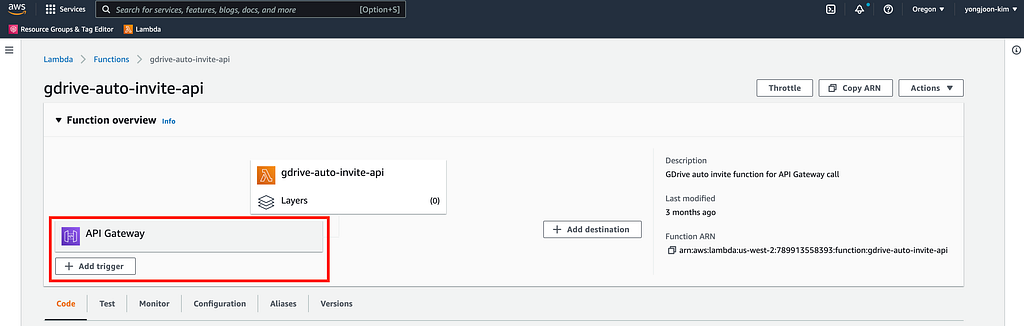
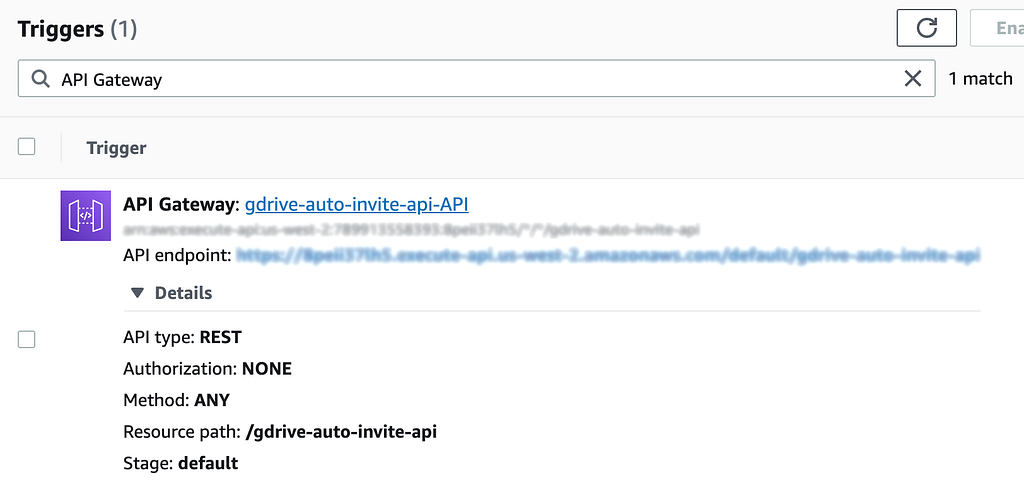
Amazon API Gateway was exactly what I was looking for. It makes it easy for developers to publish, maintain, monitor, secure, and operate APIs for different services on AWS. In your Lambda function dashboard, you can add ‘API Gateway’ as a trigger to invoke the Lambda function. Make sure to remember the API endpoint URL it provides. We are going to use Airtable’s Fetch API to make a HTTP request to this URL later in the process. (fig.5–6)
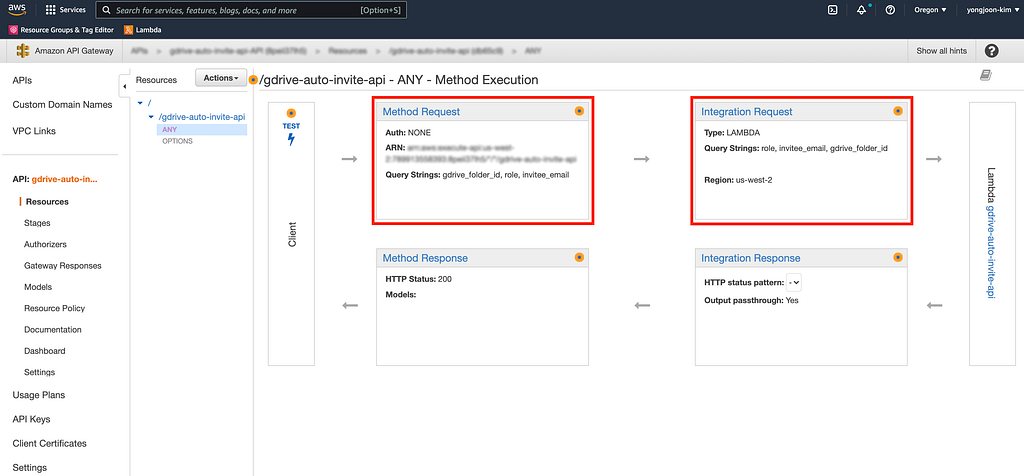
4. Set up your API Gateway to receive the payload
You need to design your API a little bit, specifying the parameters it can receive corresponding to the ‘event’ payload that we defined in the Step 2 . Go to the dashboard of your API Gateway and set up ‘URL String Query Parameters’ under ‘Method Request’ and ‘Integration Request’ settings. (fig. 7)
5. Write a Airtable script
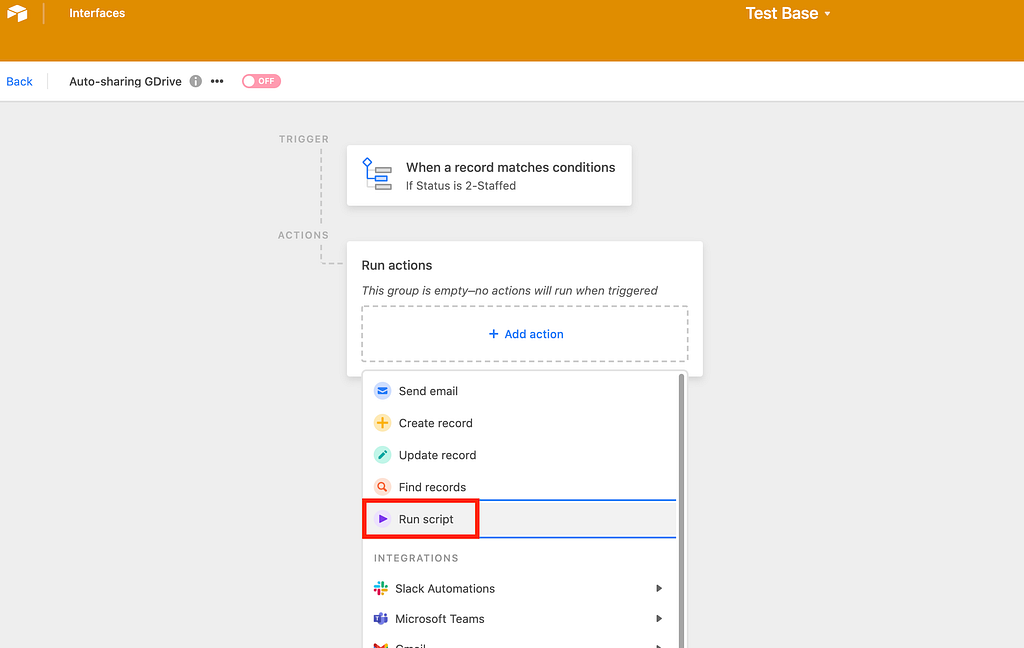
After you finish all the steps above, we can immediately write a simple Airtable script that will connect Airtable automation with our AWS Lambda function. Create a new Airtable Automation, define a trigger, and click ‘Run Script’ action to write a code. (fig. 8)
In your script, make sure to take required input parameters using input.config() method. And then define the ‘event’ payload of the input parameters to send to your Lambda function matching the data structure described in the Step 2 . See the code snippet below.
let config = input.config()
let folder = config.folder;
let folderSplit = folder.split("/");
let folderId = folderSplit[folderSplit.length - 1];
let email = config.email;

// add the API Gateway URL of your Lambda function
const awsUrl = "";

if (folderSplit.length > 0) {
    // call AWS Lambda function with API Gateway
    // define event payload
    let event = {
        "queryStringParameters": {
            "gdrive_folder_id": folderId, // 'folder_id' in Lambda function
            "invitee_email": email, // 'email_address' in Lambda function
            "role": "writer" // 'permission_role' in Lambda function
        }
    };
    let response = await fetch(awsUrl, {
        method: "POST",
        body: JSON.stringify(event),
        headers: {
            "Accept": "application/json",
            "Content-Type": "application/json",
        }
    });
    console.log(await response.json());
} else {
    console.log("Link to the Google Drive folder is required.")
}
View the original code on GitHub
6. Automation in action
Now everything is ready for action! Try it yourself to see if an Airtable update automatically triggers Google Drive folder sharing with the designated people.
Conclusion
No-code SaaS tools such as Zapier or Integromat have been rapidly changing workplaces by allowing non-technical people to build their own automation tools without having to code or rely on software developers. However, programming capabilities are still necessary because some highly complex workflow problems are still difficult to solve with those off-the-shelf no-code automation tools. Airtable’s scripting environment is ideal for those who want to boost their automation capabilities by coding their own solution. And the workflow that I demonstrated in this article can push the boundaries even further by connecting Airtable and a AWS Lambda function that performs more extended scope of works. Now you have the caliber to use your Airtable not only as a pretty database, but also as a strong central automation hub where you can build non-native integrations with so many other software platforms!
Boost Your Airtable Automation with AWS Lambda + API Gateway was originally published in AWS Tip on Medium, where people are continuing the conversation by highlighting and responding to this story.